
Joyful Linux Mint
Wed 21 Oct 2026
Over the past couple of weeks I have been experimenting with Linux Mint on two devices: a MacBook Pro and a Microsoft Surface Laptop. You don’t really notice the habits you develop over years of using macOS, so spending time with Mint in different hardware was a good opportunity to question which ones were worth keeping and also try out new experiences altogether.
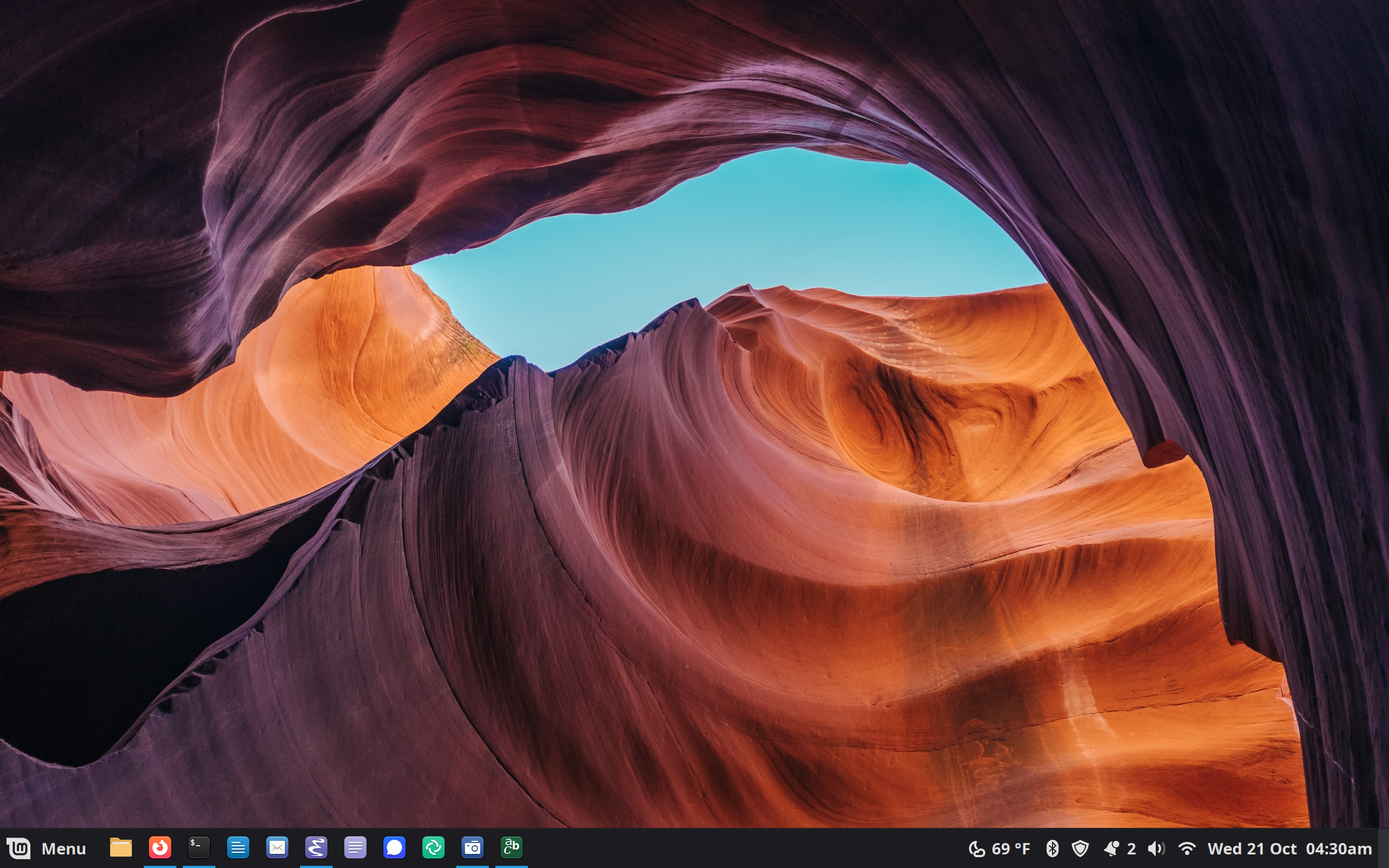
For future reference and because I believe sharing what we do fosters adoption, in this note I will jot down the tweaks and changes I made for a practical and joyful configuration.
Touchpad Gestures
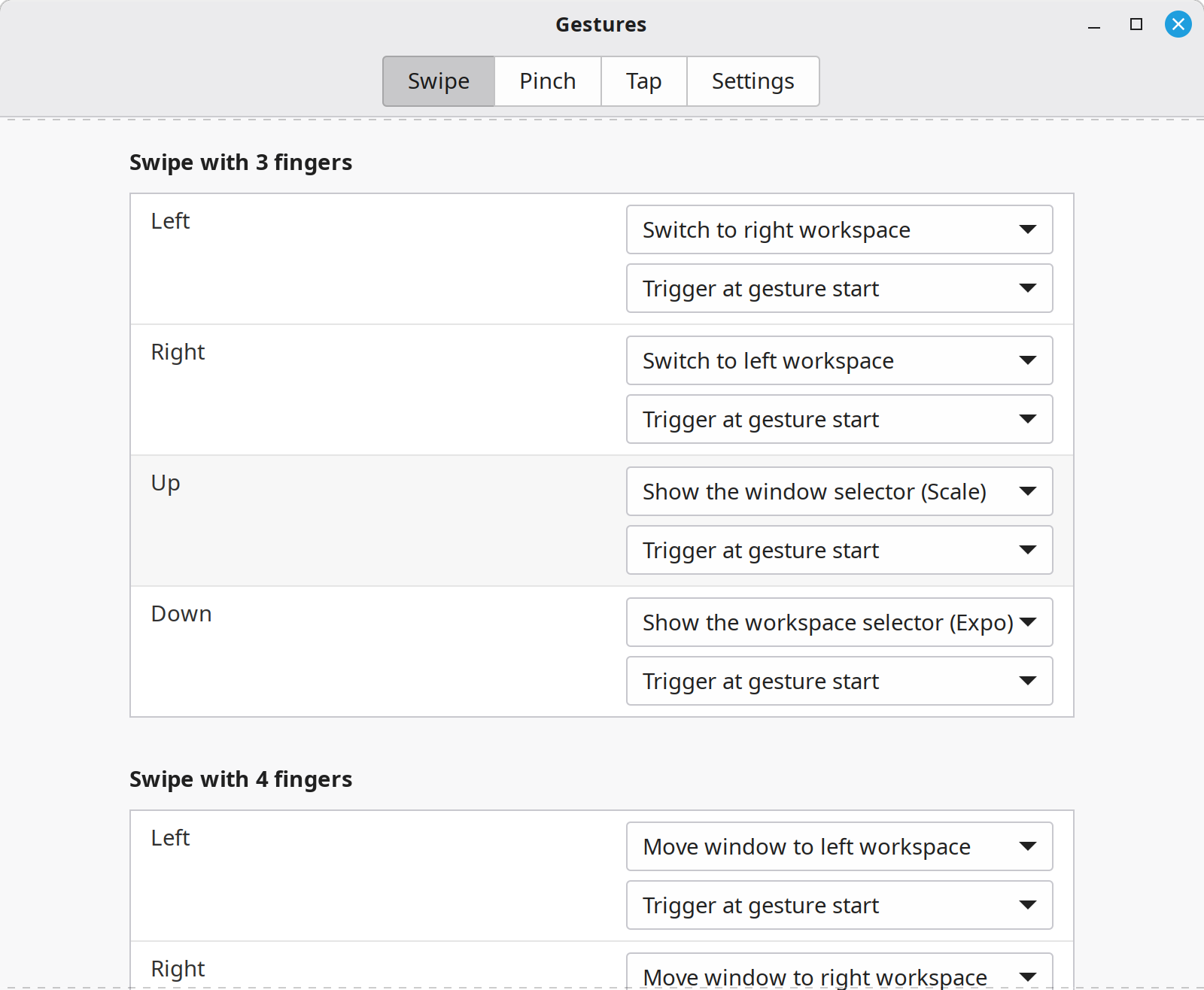
Coming from macOS means being used to touchpad gestures. On Linux Mint, these are even better! Here is my configuration:
3 Finger Gestures
These are pretty much the same ones as I use on macOS:
- Swipe left to switch to right workspace
- Swipe right to switch to left workspace
- Swipe up to show the window selector in Scale view (what Apple calls “Mission Control”)
- Swipe down to show the window selector in Expo view
4 Finger Gestures
- Swipe left to move current window to left workspace
- Swipe right to move current window to right workspace
- Swipe down to minimize current window
- Swipe up to maximize most recent window
The swipe up and down gestures are set through custom commands.
To minimize current window (swipe down):
gdbus call --session --dest org.Cinnamon --object-path /org/Cinnamon --method org.Cinnamon.Eval 'global.display.focus_window.minimize()'
To maximize past window (swipe up):
gdbus call --session --dest org.Cinnamon --object-path /org/Cinnamon --method org.Cinnamon.Eval 'let ws = global.workspace_manager.get_active_workspace(); let m = global.display.sort_windows_by_stacking(ws.list_windows().filter(w => w.minimized)); let w = m[m.length - 1]; if (w) { w.unminimize(); w.activate(global.get_current_time()); }'
I set all gestures to trigger at gesture start.
Keyboard Settings
To keep the muscle memory of the macOS keyboard layout I installed keyd to handle the remapping.
In /etc/systemd/default.config:
[ids]
*

[main]
capslock = layer(control)
leftmeta = layer(control)
leftcontrol = layer(meta)
Emacs
Emacs required a bit of experimentation but here is what’s working for me.
In ~/.config/keyd/app.conf :
[emacs]
leftmeta = layer(meta)

[Emacs]
leftmeta = layer(meta)
In my init.el I remapped the Super key for what Emacs does on macOS already.
(global-set-key (kbd "s-a") #'mark-whole-buffer)
(global-set-key (kbd "s-c") #'kill-ring-save)
(global-set-key (kbd "s-x") #'kill-region)
(global-set-key (kbd "s-v") #'yank)
(global-set-key (kbd "s-z") #'undo)
(global-set-key (kbd "s-Z") #'undo-redo)
(global-set-key (kbd "s-s") #'save-buffer)
(global-set-key (kbd "s-f") #'isearch-forward)
(global-set-key (kbd "s-w") #'kill-current-buffer)
(global-set-key (kbd "s-q") #'save-buffers-kill-terminal)
Toggle Touchpad via Keyboard Shortcut
I created a keyboard shorcut mapped to Ctrl-Alt-H to toggle the touchpad. I find that sometimes the side of my thumb grazes the touchpad when I’m typing, sending my cursor flying elsewhere in a document.
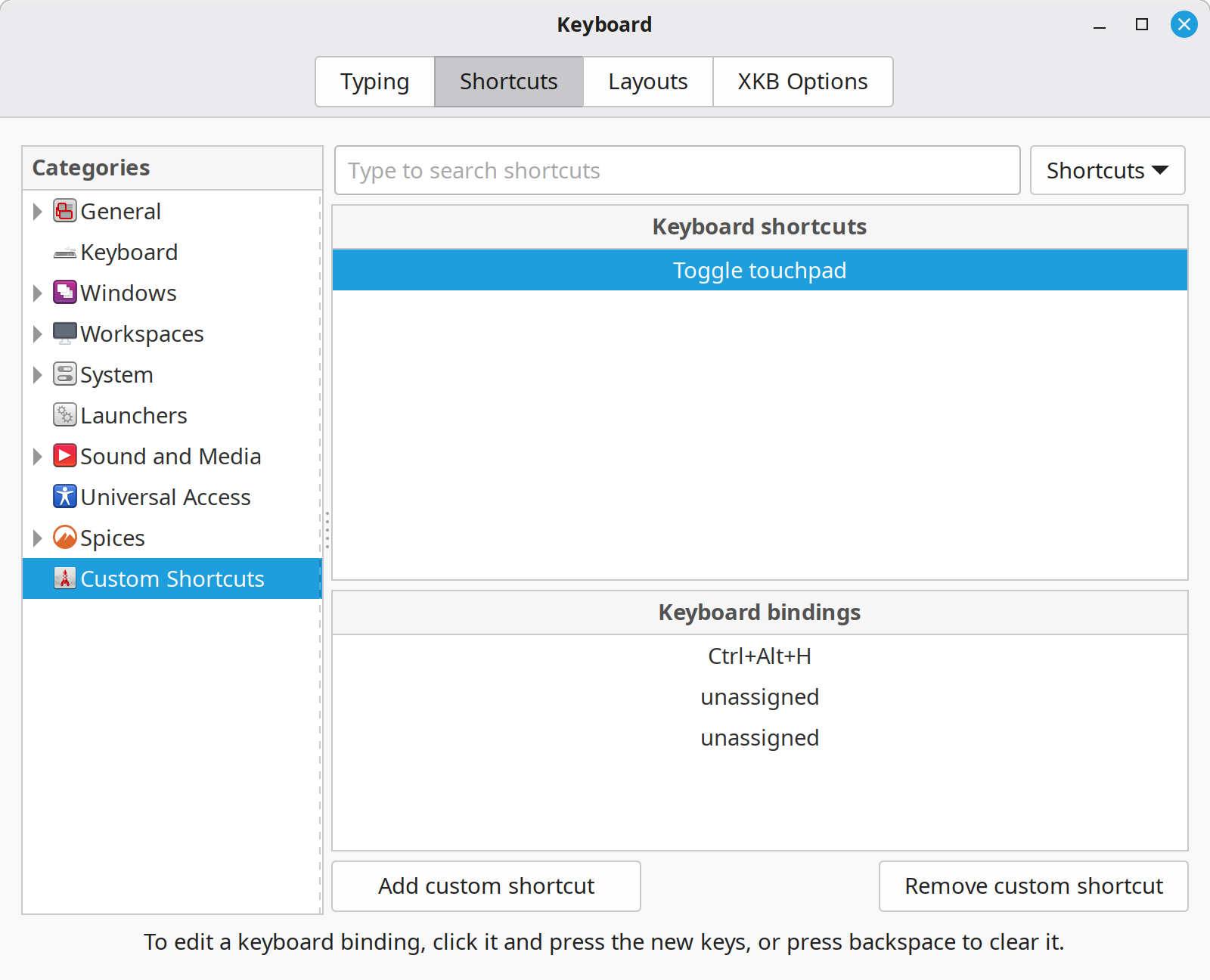
This script comes from a post in Karlinux’s blog.
In ~/.local/bin/touchpad.sh:
#!/usr/bin/env bash

key="org.cinnamon.desktop.peripherals.touchpad"
state="$(gsettings get "$key" send-events)"

if [ "$state" = "'enabled'" ]; then
  gsettings set "$key" send-events disabled
  notify-send "Touchpad disabled"
else
  gsettings set "$key" send-events enabled
  notify-send "Touchpad enabled"
fi
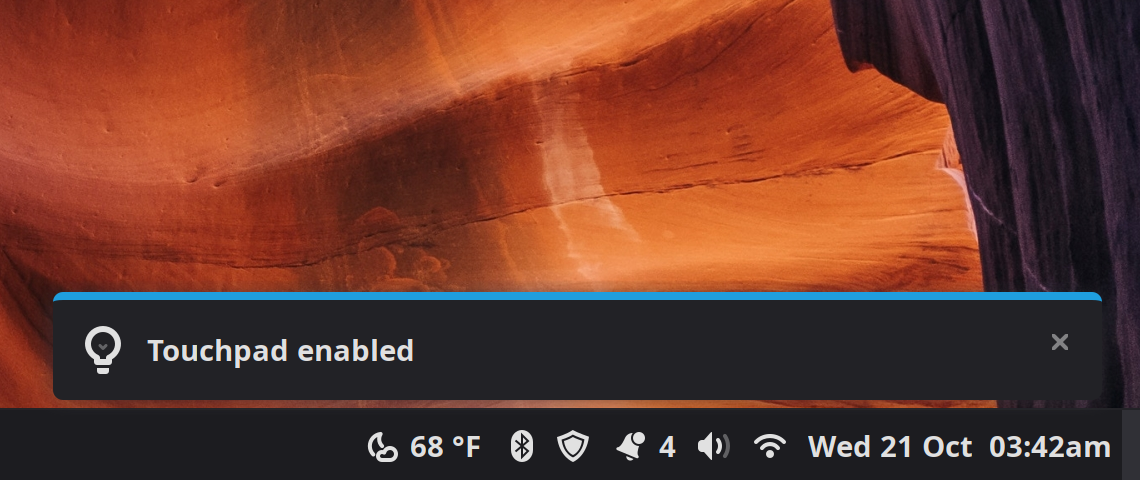
The script will send a notification indicating the state of the touchpad.
Fonts
One noticeable change coming from macOS was the different fonts on websites I visit often. After a few days I decided to simply bring all the fonts in my macOS to Linux Mint. That was mostly necessary for Firefox because for the operating system itself I stayed with the defaults plus Maple I’ve been enjoying a lot!
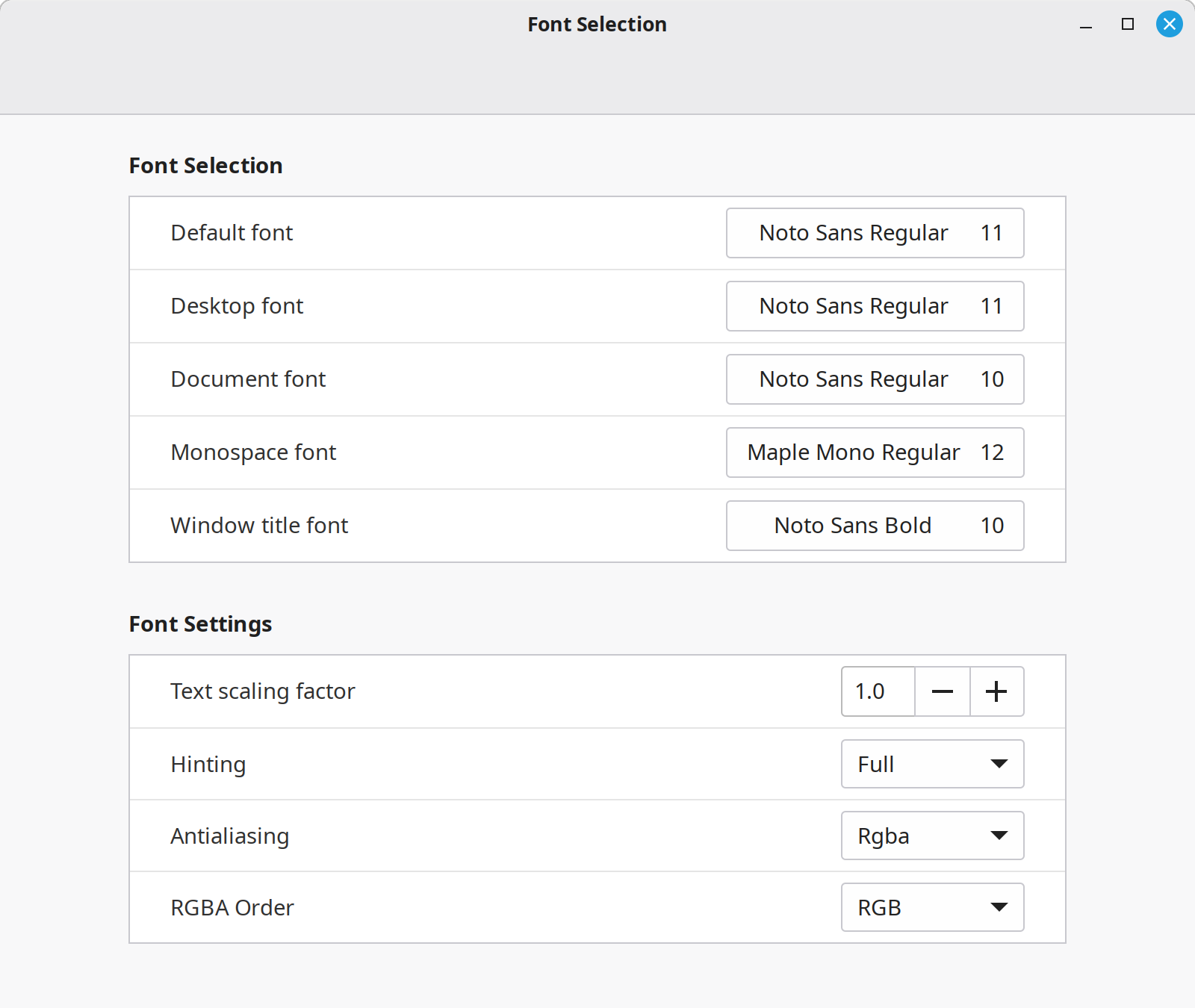
These were the settings that had been working for me on the Surface Laptop. Last night I noticed that I get some eyestrain while working on the MacBook Pro but not at all with the Surface, so I copied the same settings above to the Mac. Hopefully that does the trick!
Linux Mint
Using Linux Mint has been really fun. It had been a while since I had spent any time in the Linux world at all, not since I was around 13 or 14 and I distrohopped for a bit. Even back then, Linux Mint was my favorite distribution. Anything I didn’t like could simply be modified until I did. I mean, I was even able to add a couple of buttons for creating a new post or sharing a link to my blog directly from my home menu. How cool is that! Over time, the operating system molds to my habits, decisions, and the type of computer tasks I do; while I haven’t spent enough time in Mint for it to be overtly noticeable, that’s exactly why and how I have used Emacs. Little by little, Emacs has adapted to me. And now with Linux Mint, there’s an opportunity for this philosophy to extend beyond my text editor to my entire computing environment.